Student & Parent User Guide
Comprehensive guidance on using the CounselNavi platform effectively.
1. Platform Overview
CounselNavi is a structured career guidance platform designed to support students in making informed academic and professional decisions. The portal provides access to AI-powered tools, structured counselling support, university discovery, internship opportunities, and engagement tracking.
2. Getting Started
Website https://counselnavi.com
2.1 Creating an account
Sign-up with: User type Student
You can sign-up using email ID or your LinkedIn ID.
After sign-up you will get a confirmation email on your registered ID. Follow the steps from the email. Do watch SPAM / Junk folder as sometime the confirmation email may land up there.


2.2 Update your profile
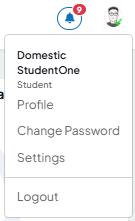
After creating an account, sign-in and update your profile. (from the Top right corner “Profile”). On the displayed Profile, Click “Edit Profile”.
Complete the Mandatory information marked as *.
CounselNavi trusts the information provided by you in the profile section. This information will be helpful for counsellors and mentors during their analysis while counselling / mentoring you. So do provide accurate, relevant and factual information.
The profile information is used by the backend smart tool to do the matching of your requirements and counsellor profile, when you explore the counsellor on the portal.
The profile tabs are self-explanatory.
Tabs Additional Information, Financial information and Application Specific information is used for the Admission Counselling process.
3. Dashboard Overview
Dashboard Screen
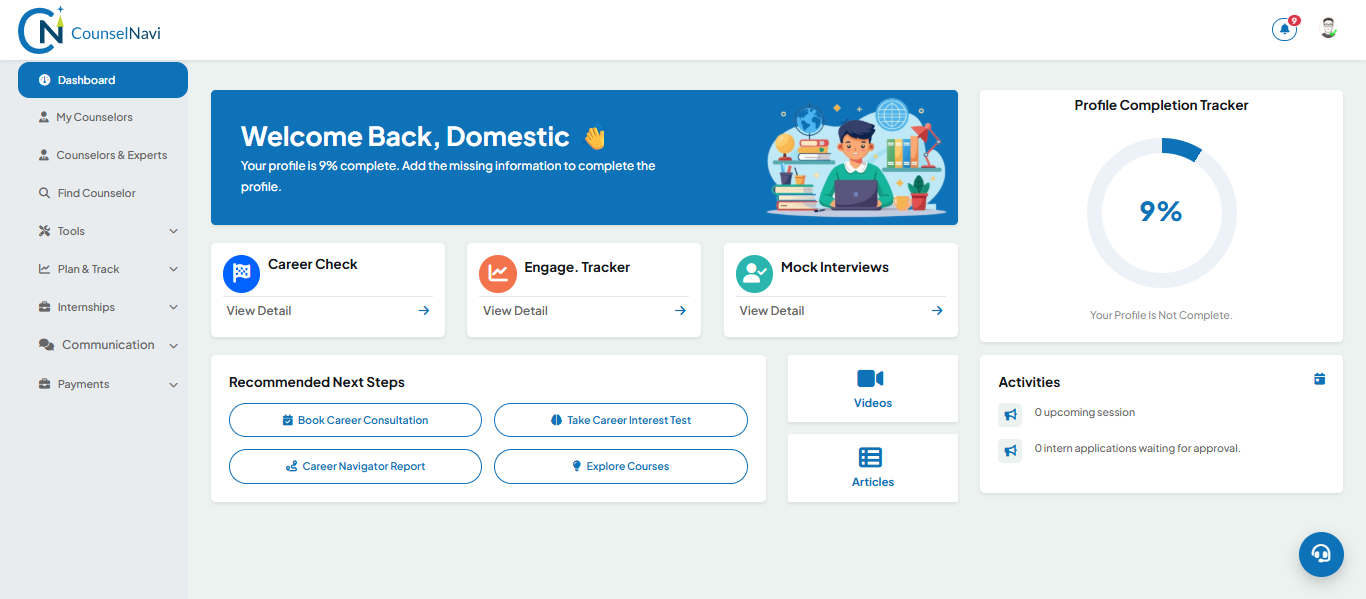
The click on each tile will lead to the detailed screen.
- Profile Completion Tracker: Ensure that it is showing 100% completion
- Career Check tool: Self- reflection based review of career related attributes
- Engagement Tracker: Log of sessions and discussion. This will be maintained by the Counsellor and visible to you if shared by the counsellor. (Refer details under Plan and Track section)
- Mock Interview: (Refer details under Tools section)
- Book Free Consultation: Look at counsellor / Mentor profile and book a free connect session
- Career Interest Test : (Refer details under Tools section)
- Explore Courses: Explore various learning courses to build skills
- Video and Articles: Relevant articles and videos about career and Industry
- Activities: Update on session or internship
4. Left Pane Menu
4.1 Home Menu Functions
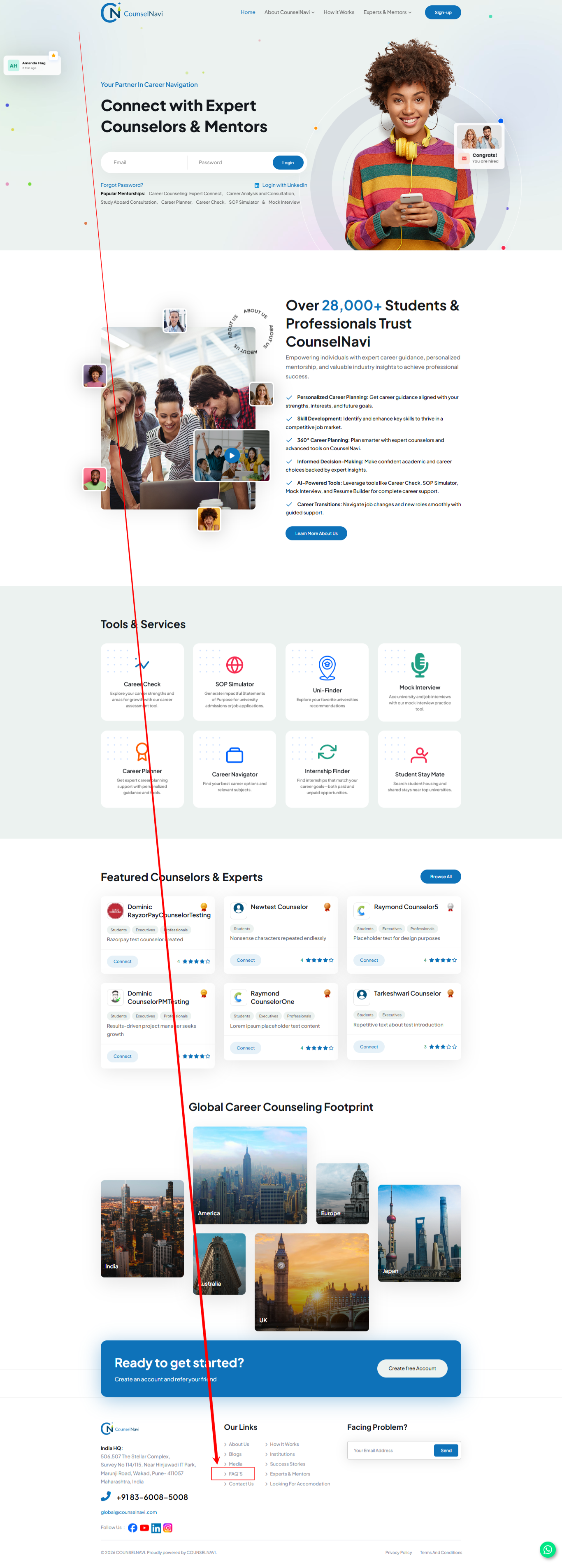
These functions are self-explanatory. Also refer to the FAQ section at the bottom of the home screen.
4.2 My Counsellors
The list of the counsellors or Industry experts you are connected with.
Click the respective Counsellor / IE to look at the profile.
If you are not connected with any counsellor / IE, you can browse through the profiles, select one or more profiles and send Connect request by using buttons,
- Book Free Consultation Or
- Book Appointment buttons Or
- Send a message.
Counsellor / IE will respond back to you.
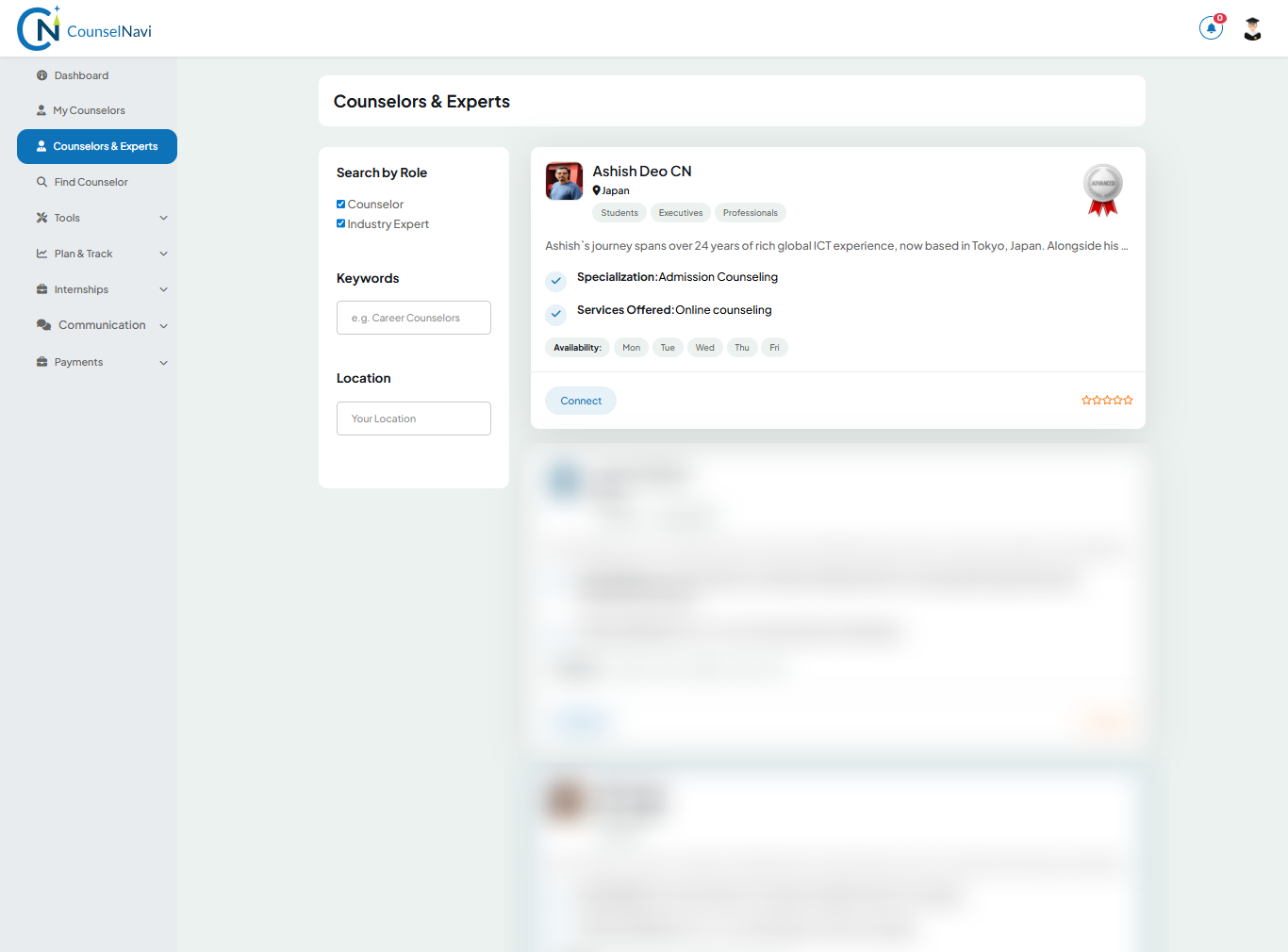
4.3 Counsellors and Experts
Explore the Career counsellors, Admission counsellors and Industry experts. Connect as explained above.
4.4 Find Counsellor
You can use this function to get recommended profiles of counsellors based on the requirement you mention.
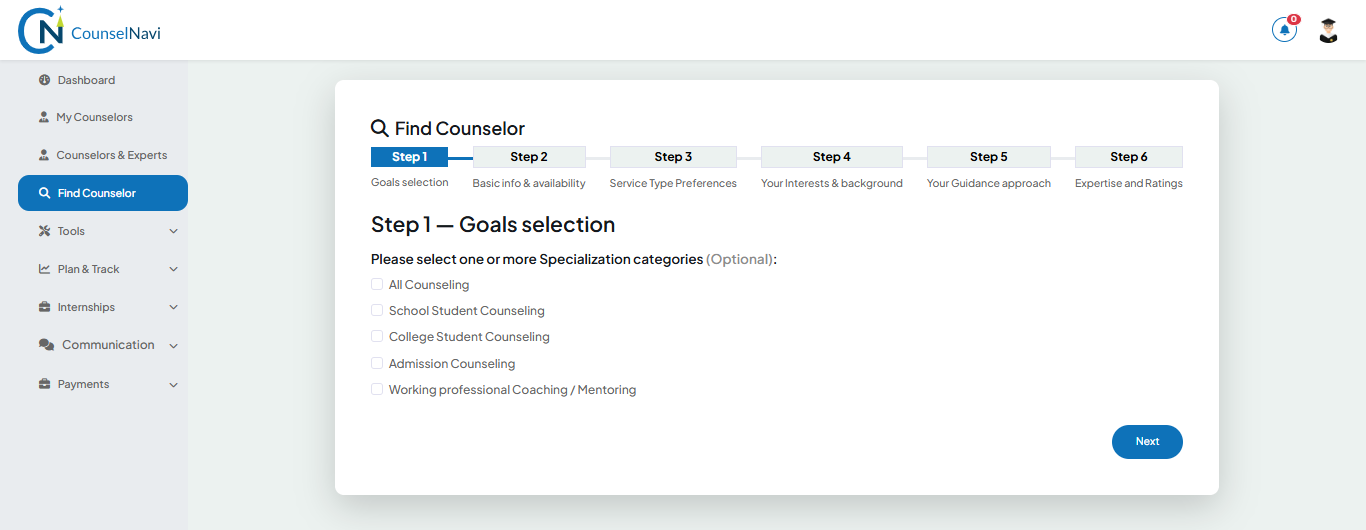
Provide the information Step by Step, and the smart system will do a background screening and will recommend you the profiles of matching counsellors.
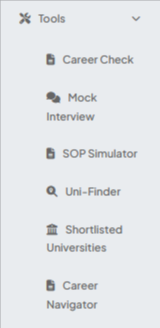
Tools
These are the AI based value add tools developed by CounselNavi for the benefit of students. Some of these tools are complimentary and some are at a charge. The details will be published on the platform at relevant places.
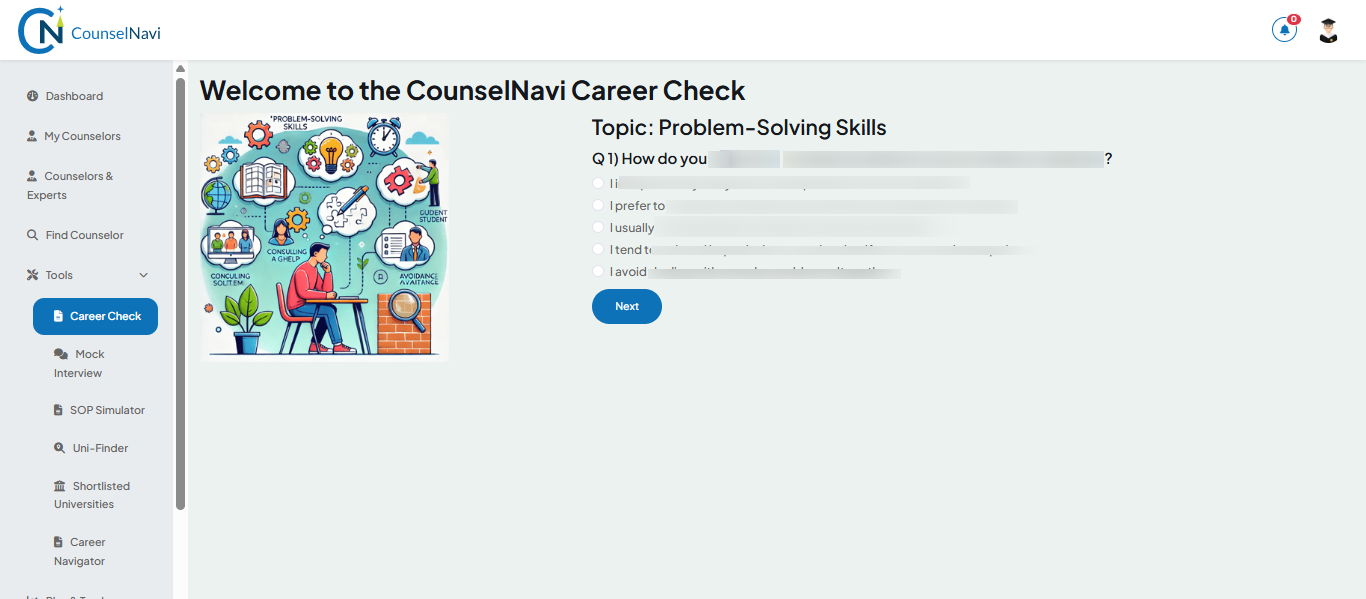
4.5 Career Check
A simple tool to get a self- reflection based review of the career related attributes. Answer questions and you will get a detailed analysis.
4.6 Mock Interview
Another AI powered powerful Interview simulator tool. The interactive tool with which students or working professionals can practice the Mock interview in a simulated environment.
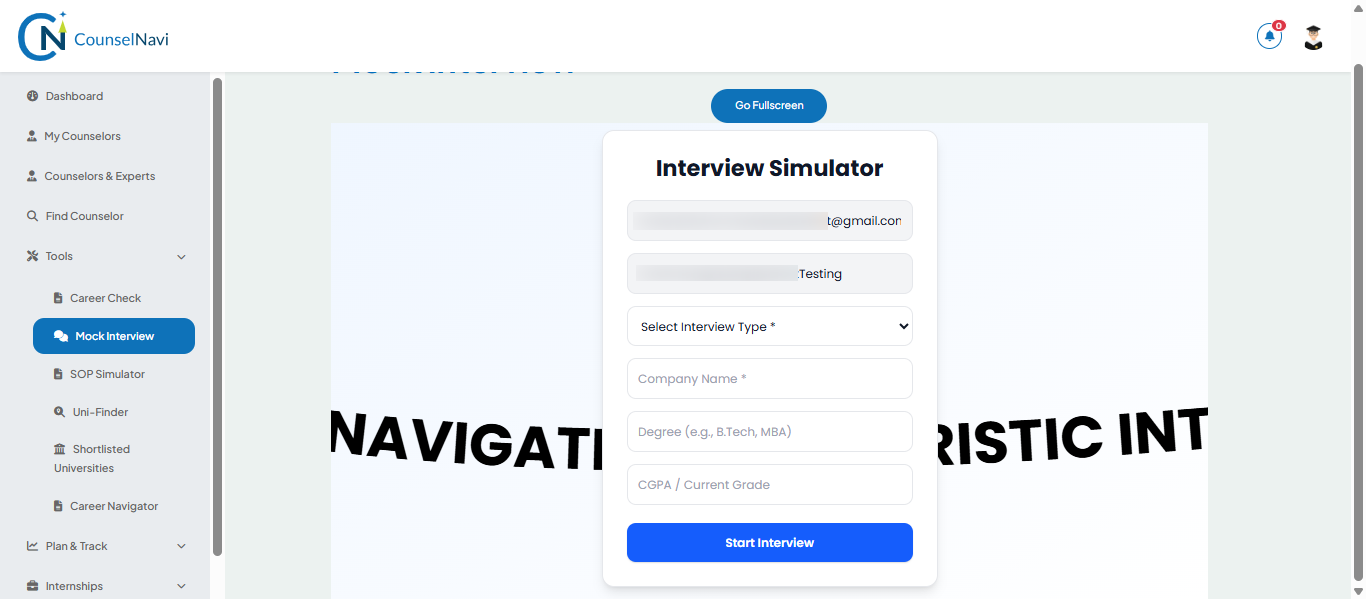
It offers practice sessions for 3 categories:
- Higher Studies Interview
- Internship Interview
- Job Interview
An AI Avatar simulates the interview. It has both Chat and Speak options. We do recommend using it and taking the benefit to build confidence and increase success rate.
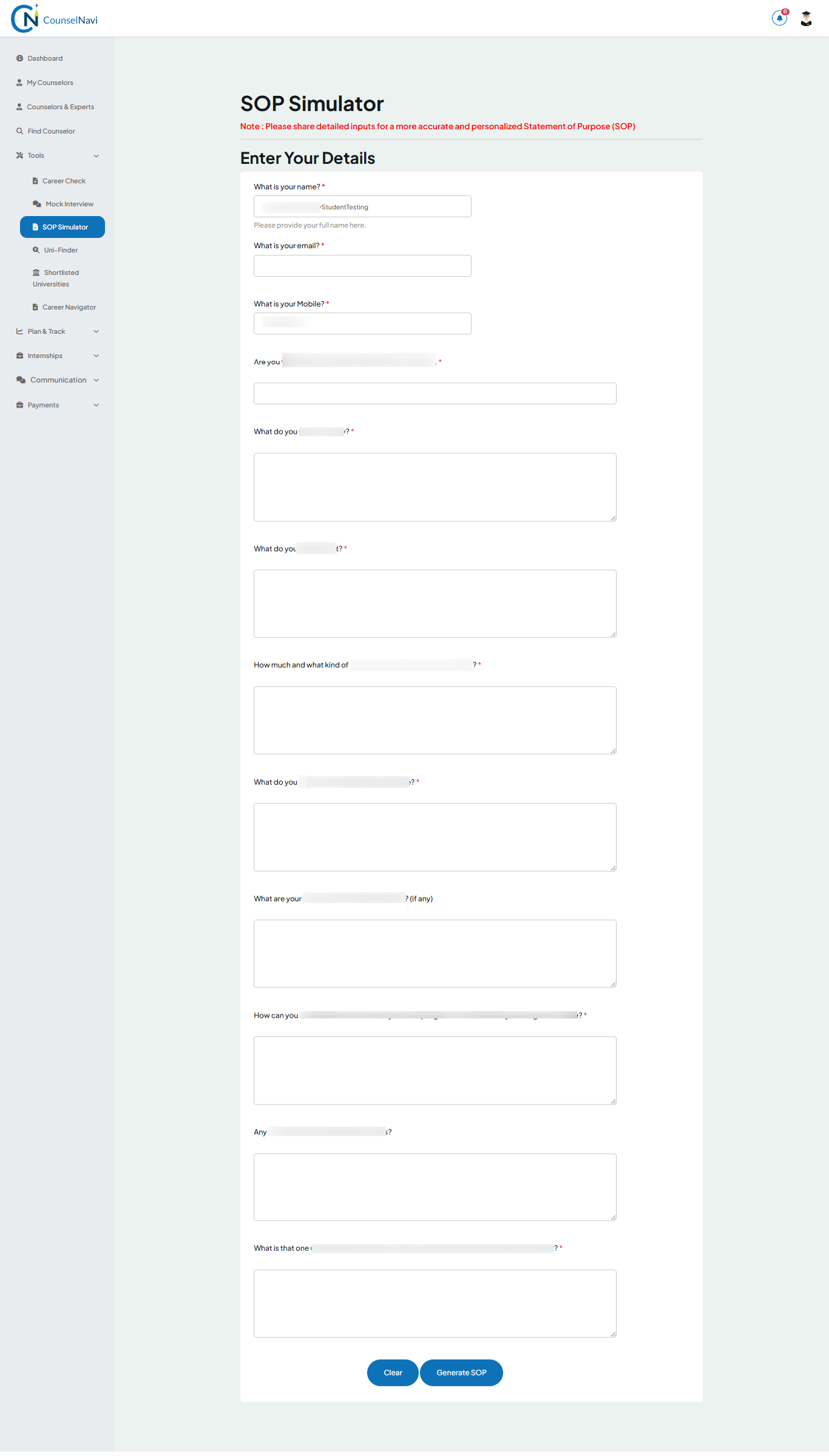
4.7 SOP Simulator
AI powered smart tool for students to simulate Statement of Purpose (SOP). SOP is one of the key documents needed for evaluation at higher studies. Fill up the details and Generate SOP. The tool will analyse and provide pointers for improvement. Multiple iterations will help you to perfect the SOP that you can submit to the admission process.
4.8 Uni-finder
It is an AI powered powerful tool to search the university or college matching with requirements. The search is global and has many value-added search parameters. The AI powered tool uses dynamic search and list display based on the key selection and eligibility criteria.
Fill up the details > Search by Clicking
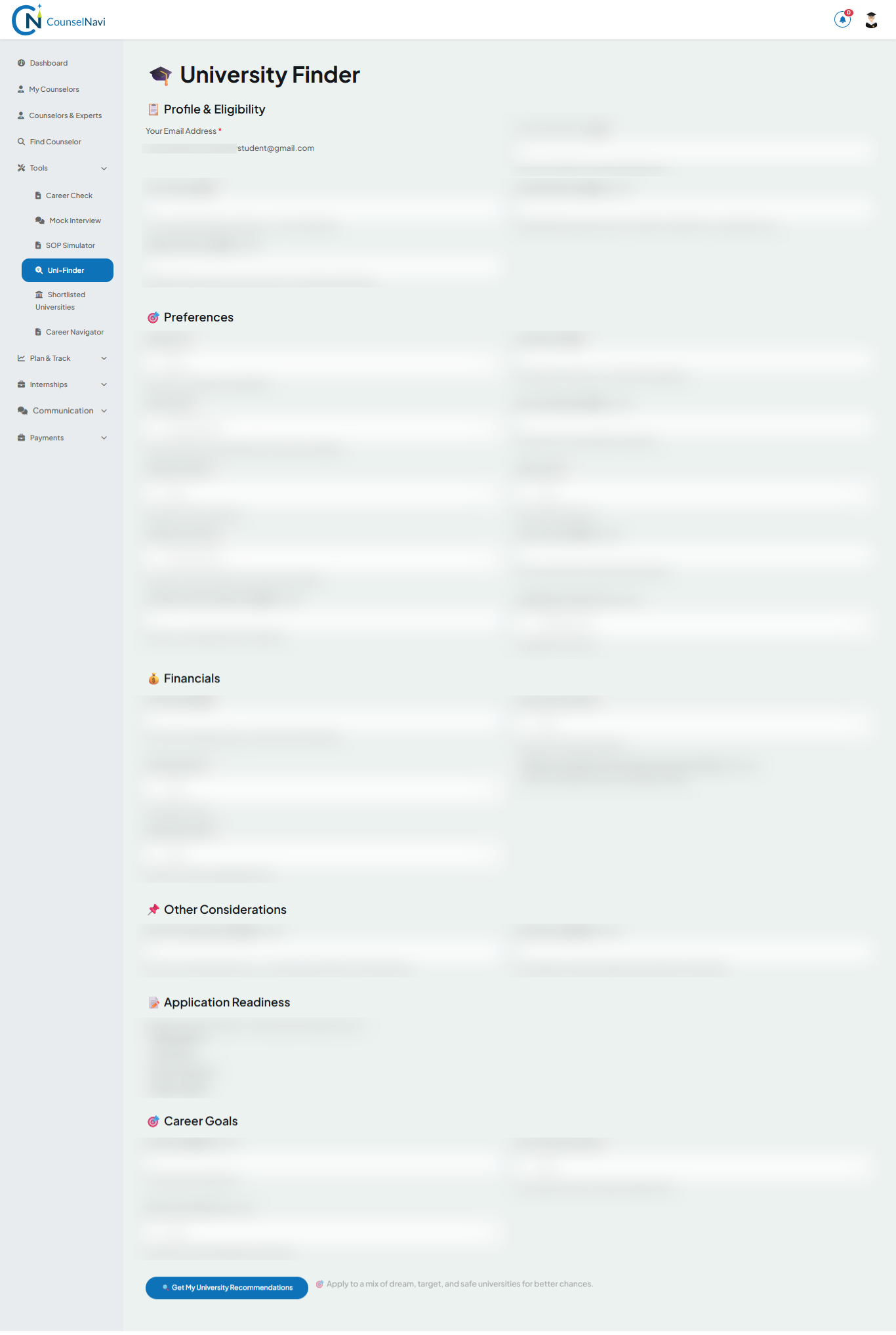
The tool will display details. You can do a second level filter / search.
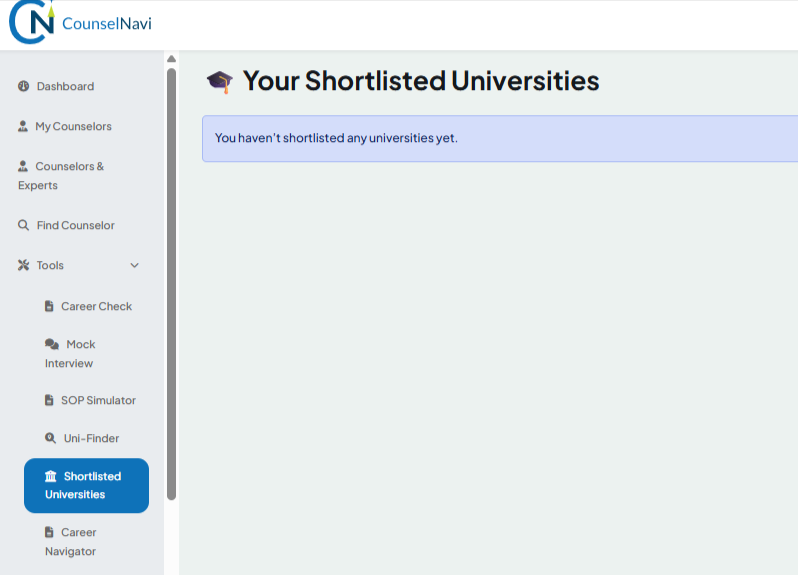
You can flag the select universities as Short list. These universities will display in the “Shortlisted Universities” section. This will save time to repeat the search every time. You can list / delist from Shortlist.
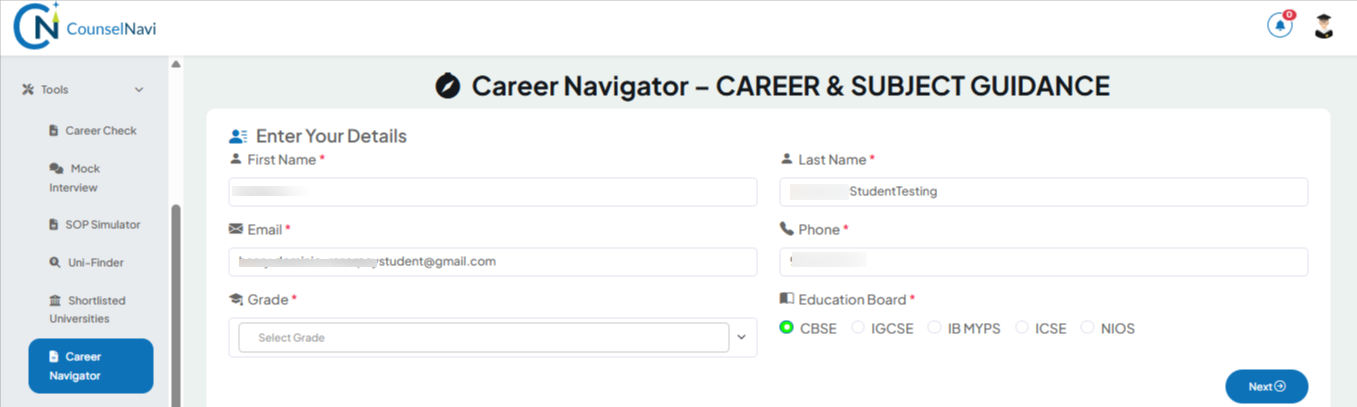
4.9 Career Discovery
The tool is to help students / parents get an indicative idea about the likely career stream and helps subject selection. This is an indicative and students / parents are suggested to go through the detailed career counselling session for effective career planning.
Plan and Track
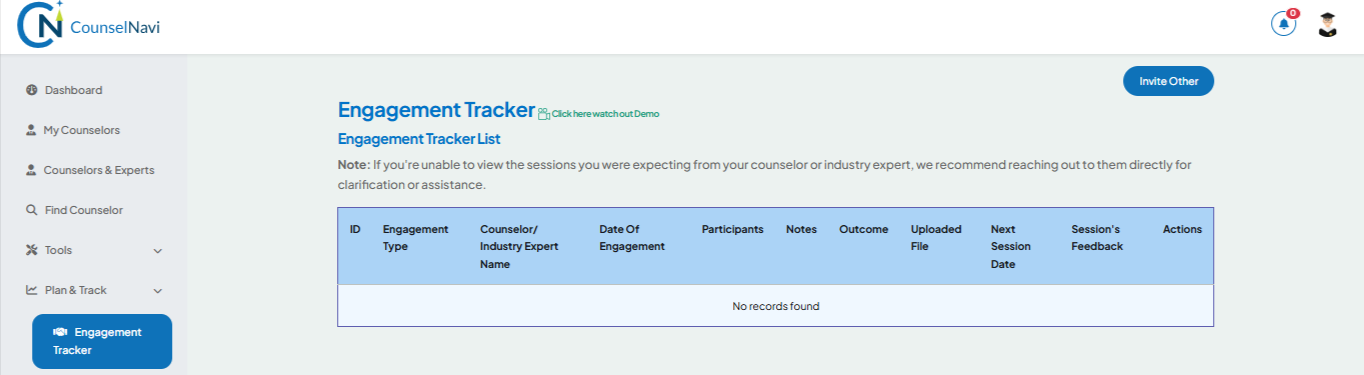
4.10 Engagement Tracker
It keeps the Log of sessions and discussion between Students / Parents and counsellor. This will be maintained by the Counsellor and visible to you only if shared by the counsellor.
4.11 Career Planner
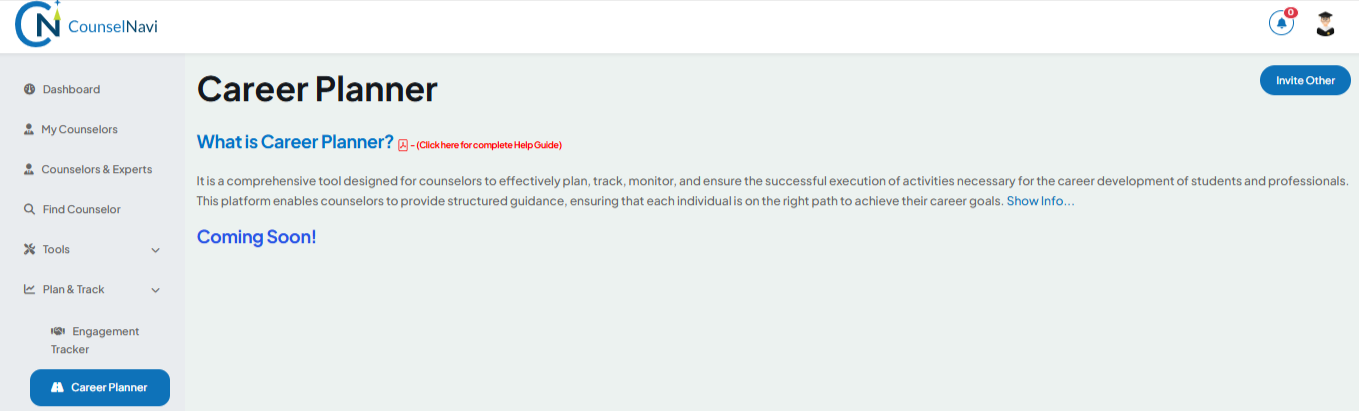
It is a comprehensive tool designed to help effectively plan, track, monitor, and ensure the successful execution of activities necessary for the career development of students and professionals. This platform enables counsellors to provide structured guidance, ensuring that each individual is on the right path to achieve their career goals. The activation of functions and tabs under Career Planner will depend upon the scope of the program agreed with your counsellor.
4.12 View Courses
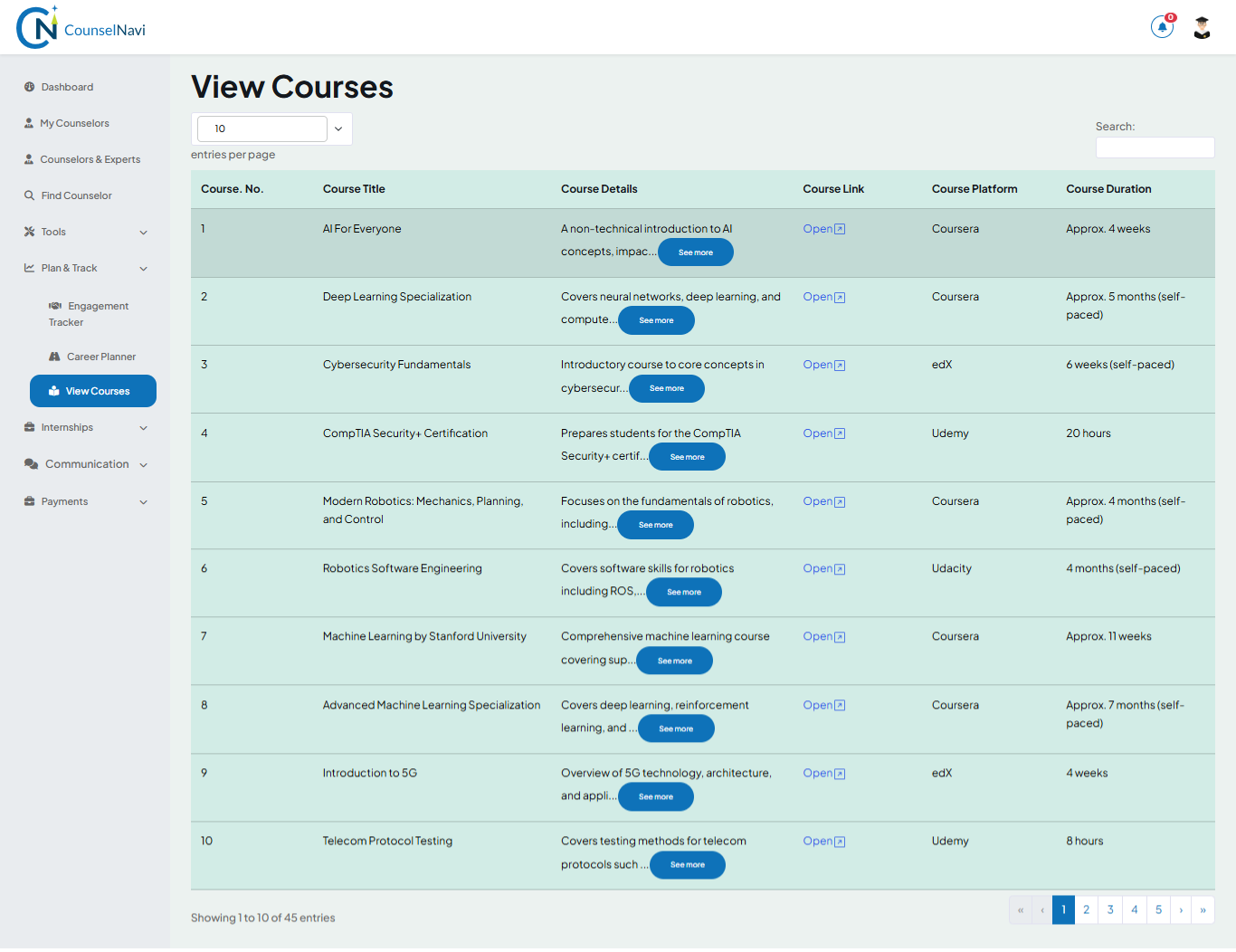
It provides a list of technical and non-technical learning courses. Explore and keep learning.
4.13 Internship
As you move through the career planning activity, you would have selected or narrowed down or have decided the suitable career options. At this point it makes sense to get a feel of such career options. The best way to get the taste of the real world of work is Internship. You can browse through the list of available internships and apply. Based on the discussion with counsellor, your counsellor also may recommend you the internship.
4.13.1 List
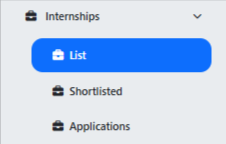
List of available Internships are displayed. Both paid and unpaid internships. Use filters to explore the ones matching your requirements.
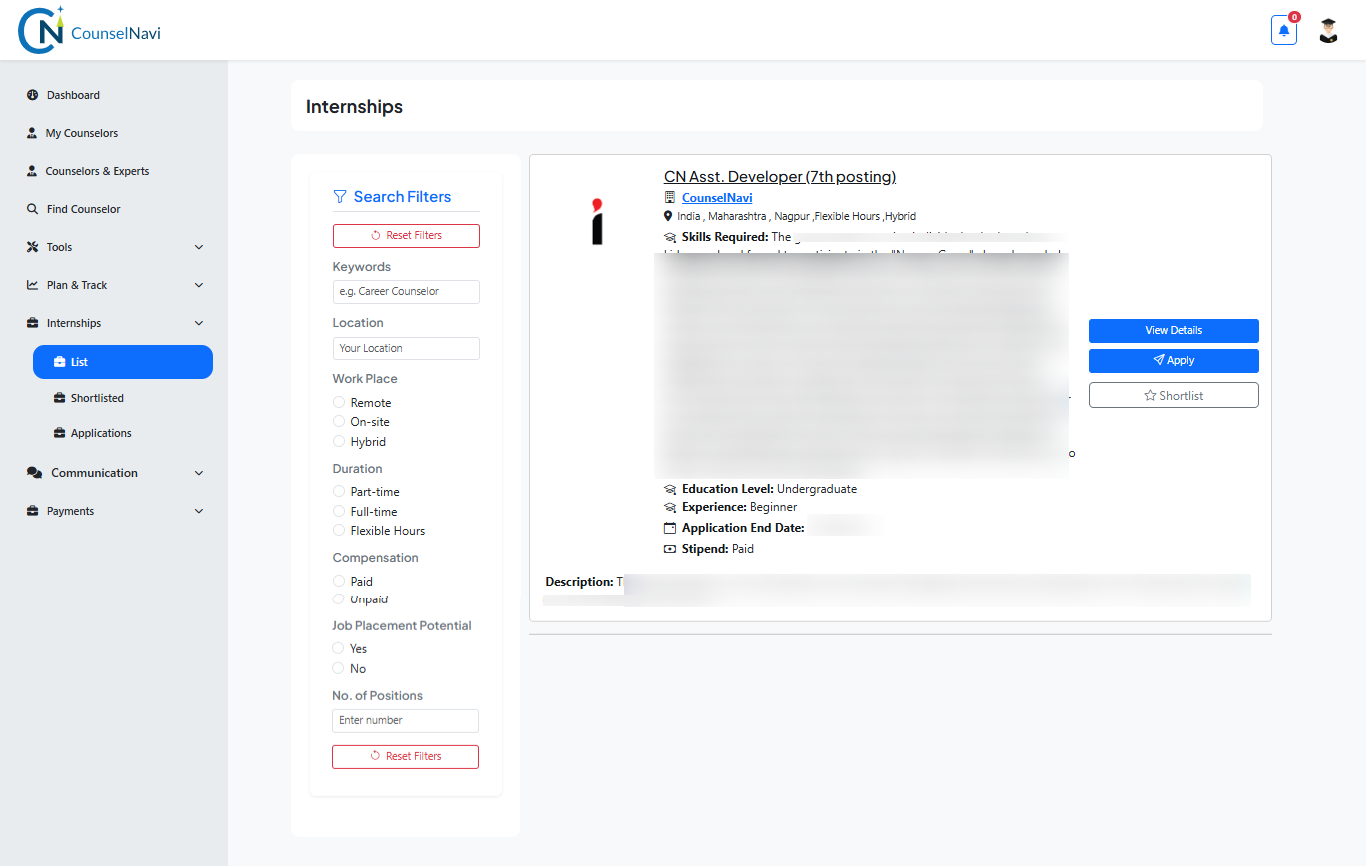
Shortlist
If you want to choose from the multiple options,
then select the relevant, click shortlist.
Apply
If you have decided then click Apply.
Upload Resume.
Add brief application details.
Upload Portfolio / additional supporting details (optional).
Add LinkedIn profile.
Submit.
Make the payment.
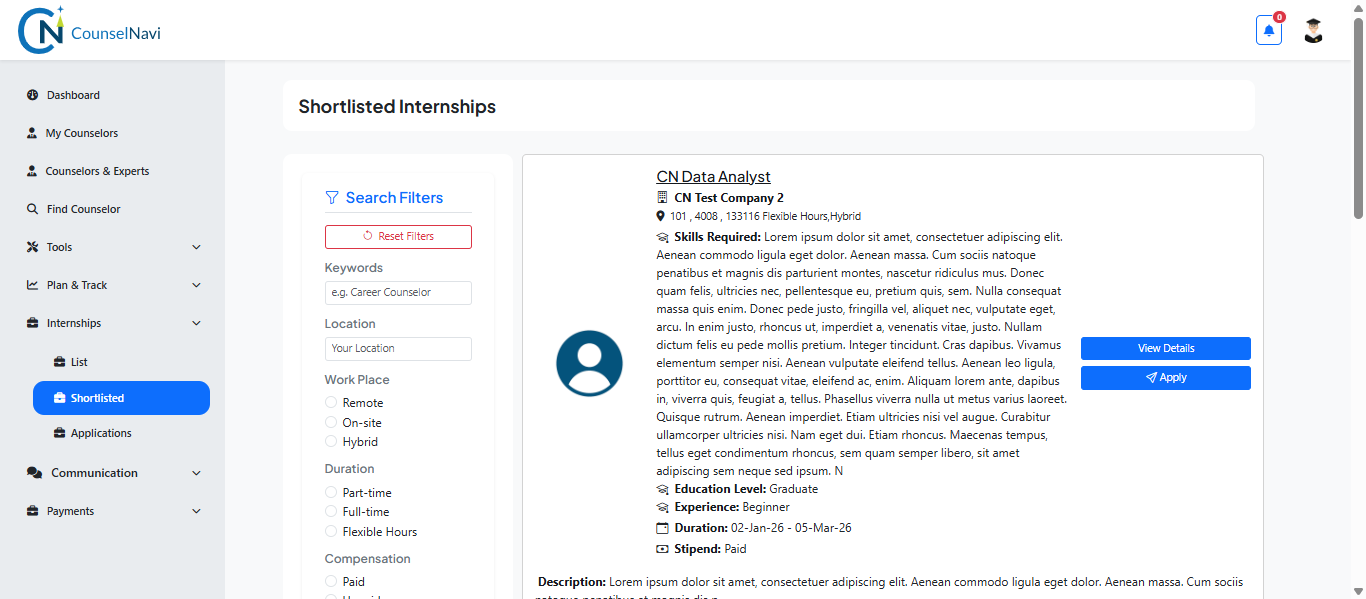
4.13.2 Shortlisted
Shortlisted internship opportunities will be displayed here.
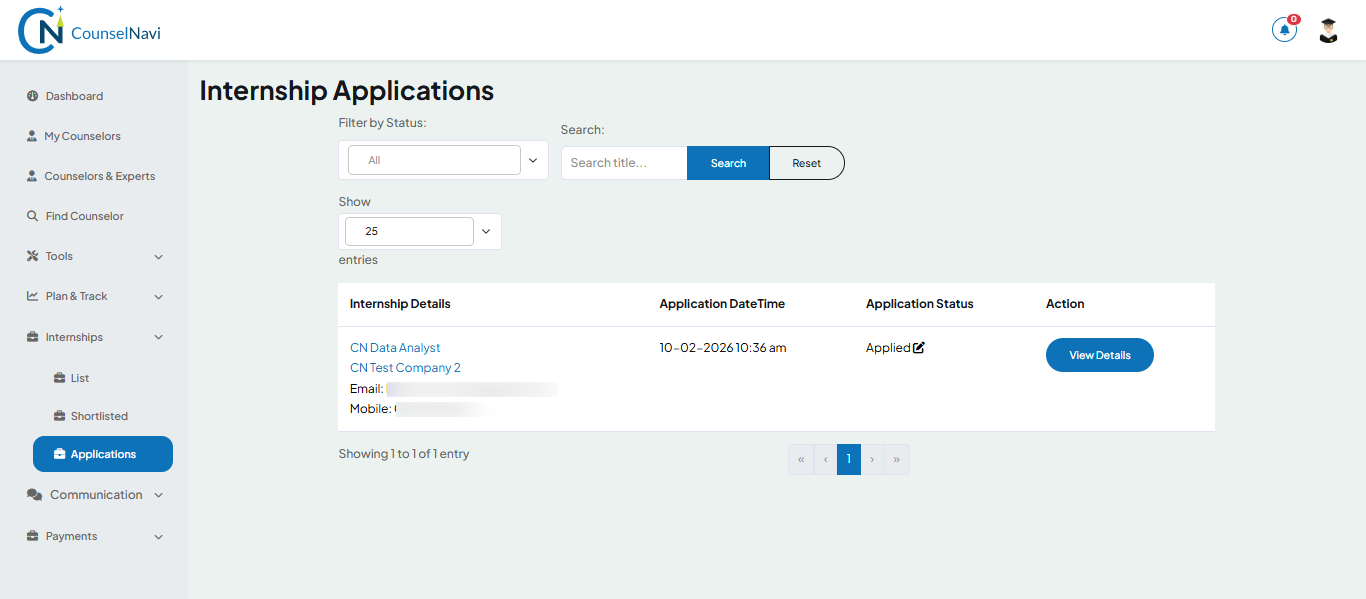
4.13.3 Applications
The application status details will be displayed here. After you make the payment, the application will be transferred to the respective organization. They will screen and connect with you to take it forward.
4.14 Communication
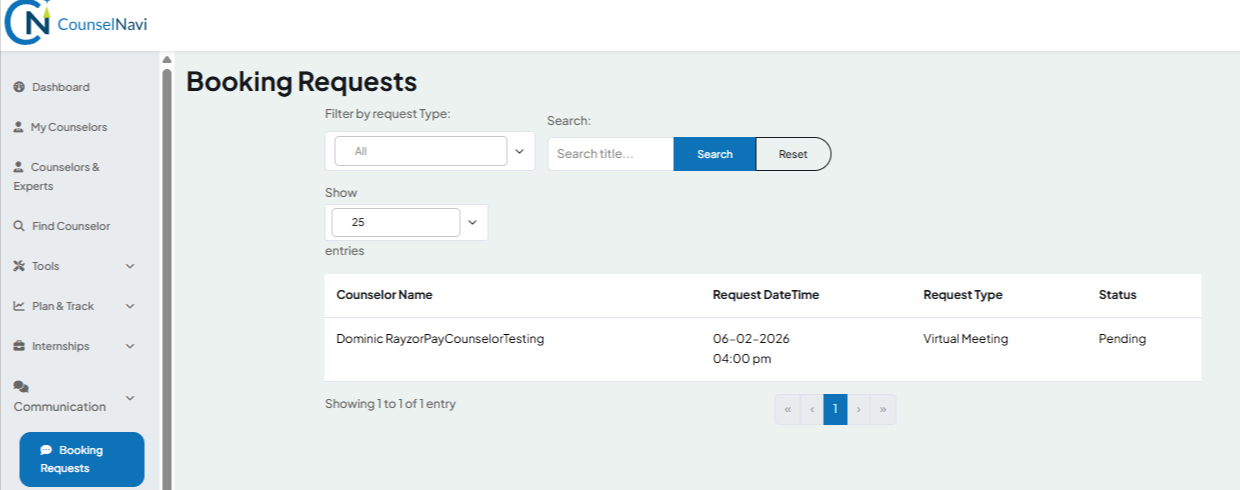
This is a communication tracker to refer to Booking requests, Messages / chats, Notifications (read / unread) with counselor / Industry expert. The above functions are self-explanatory.
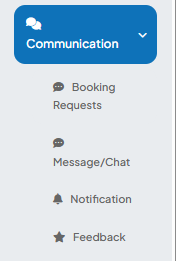
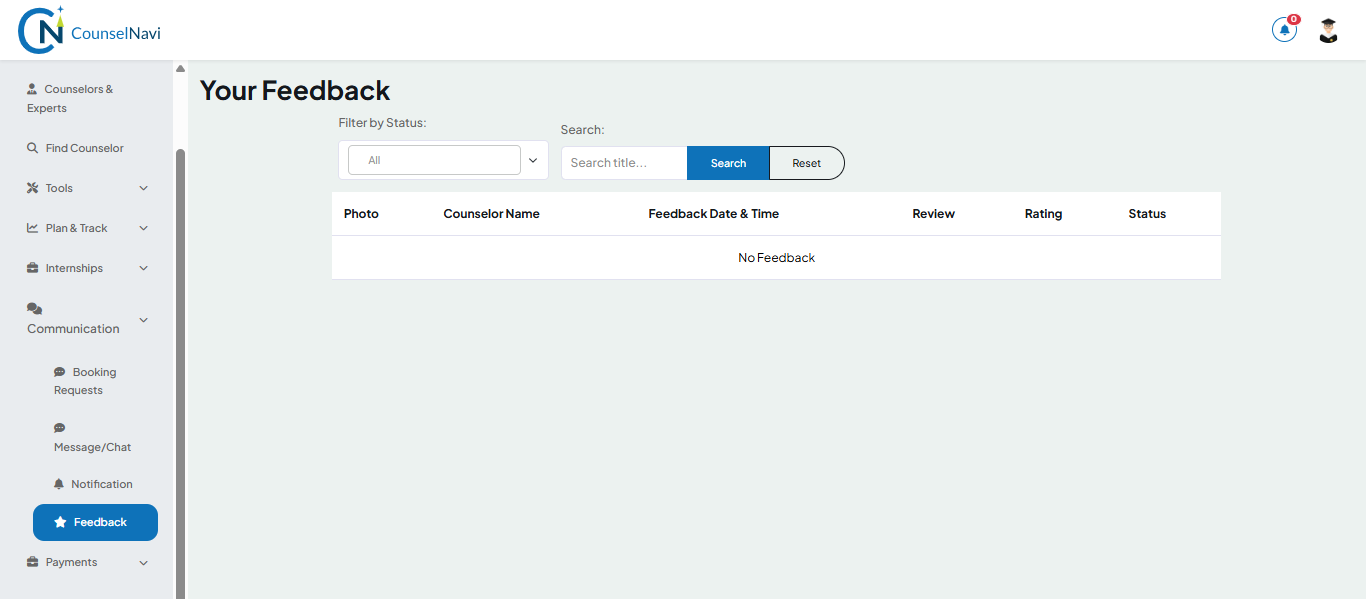
Feedback detailed screen: The feedback you give to counselors/ mentors will be displayed here.
4.15 Payments
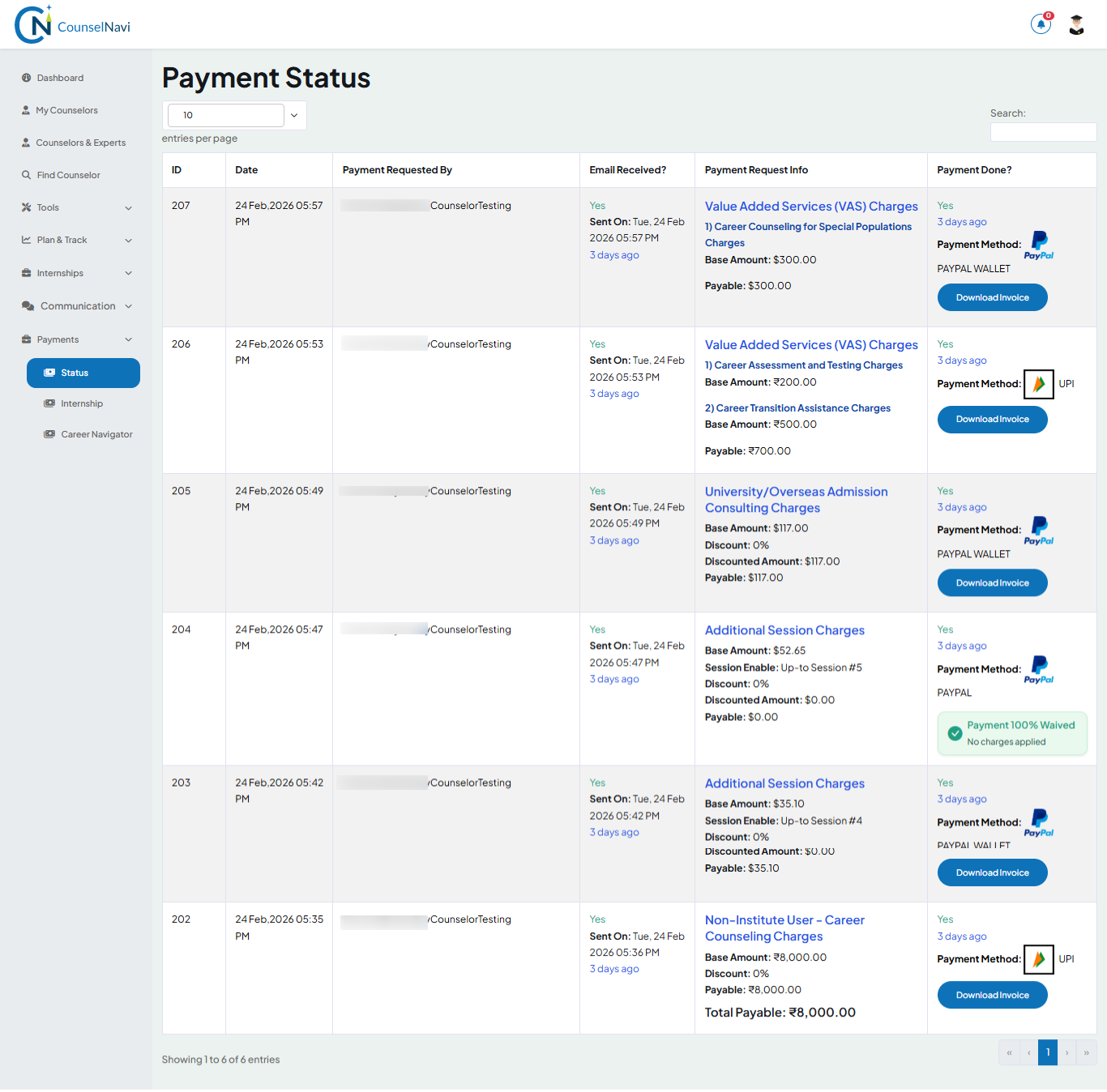
Based on your discussion with the counselor / mentor, they will raise the payment request through the CounselNavi platform. You will get an email on the registered email ID. You can pay using below options:
- PayPal for payments from bank accounts outside India
- RazorPay from Indian bank accounts. GST will be charged per the government rate
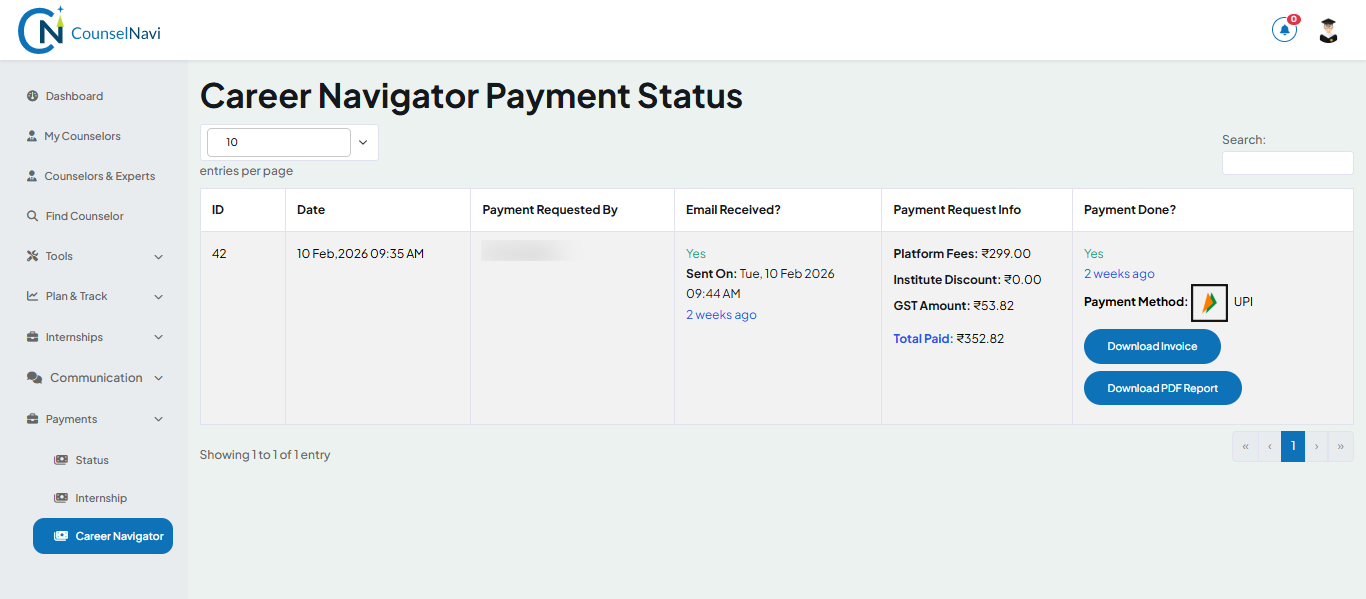
4.15.1 Status
Once Counseling or Mentoring payment is made, payment status will be displayed here.
4.15.2 Internship
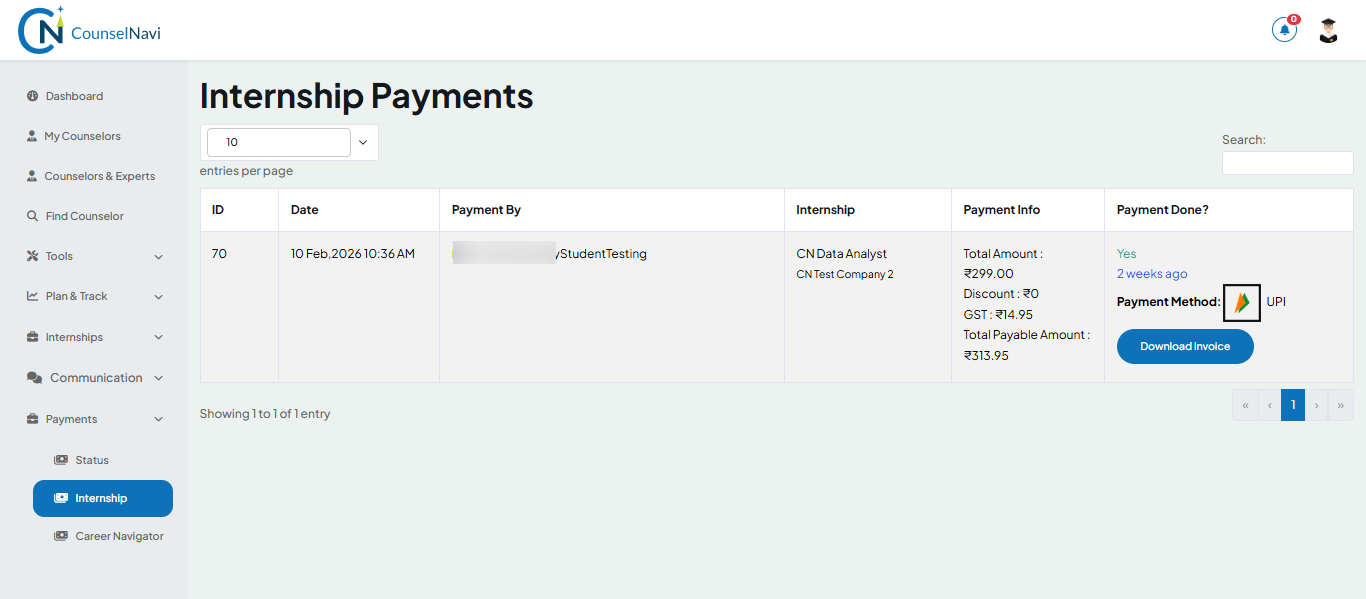
Once you apply for Internship and make the payment, the details will be displayed here.
4.15.3 Career Discovery
Once you use and pay for the Career Discovery tool, the payment details will be displayed here.
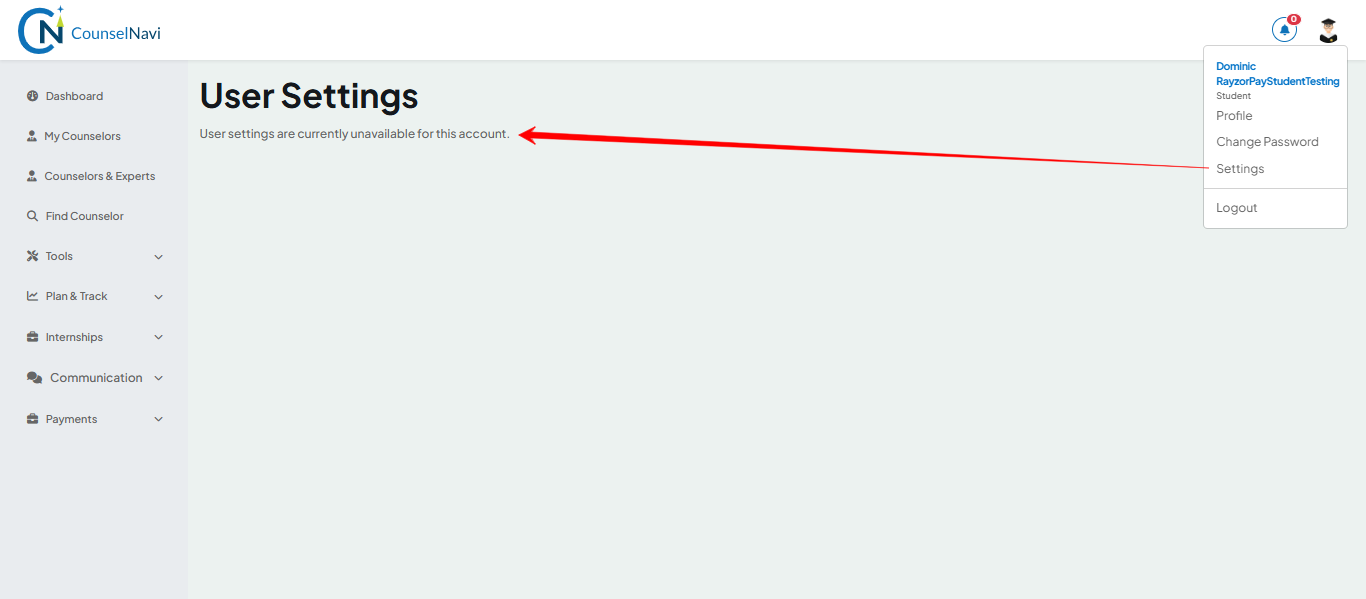
5. Settings
Settings: Not applicable at this point.
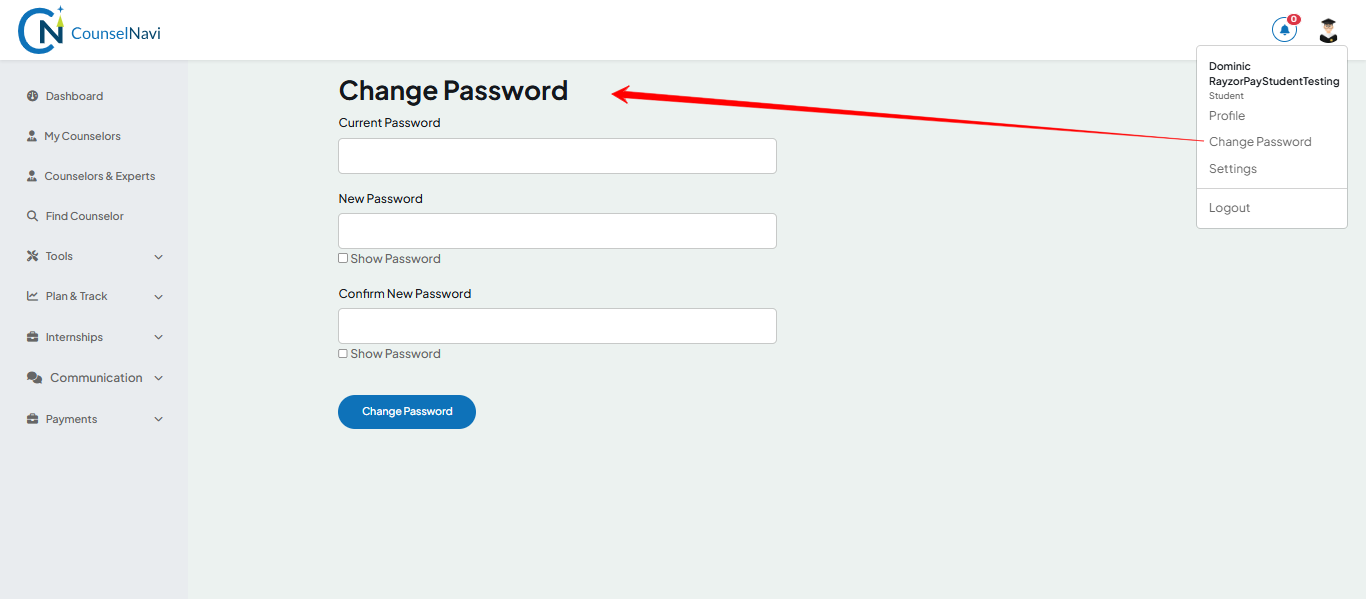
Change Password: Use it to change the password
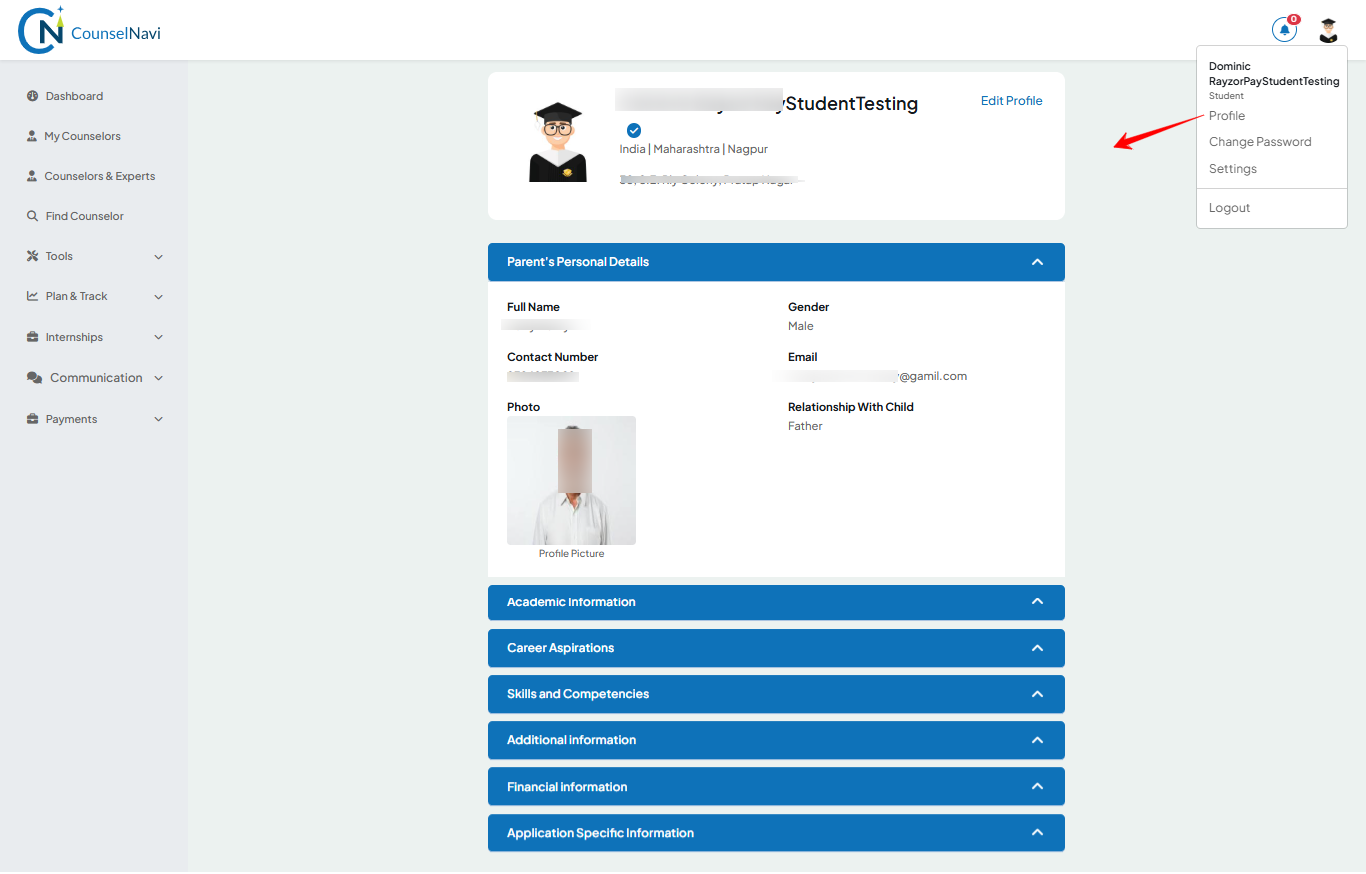
Profile View: Use it to view your profile page
6. Technical Support & Help
6.1 Common issues
- Login error, Profile not saved. Error 500, etc.
For any technical issue WhatsApp +91 83-6008-5008
Or email to global@counselnavi.com
7. Privacy & Data Security
The profile information shared by students and parents is for the purpose of career counseling, mentoring or value added services and is visible only to the connected counselor / Industry experts.
The feedback / testimonials given by the student /parent, may be used by CounselNavi or counselor / mentor / Industry expert on social media for marketing and social awareness purposes.
8. Student Off-boarding
For any reason, if student or parents want to discontinue the services with CounselNavi, can do so by writing an email to global@counselnavi.com with a requested date of off-boarding. Please provide 1 working week time to process the request.
The CounselNavi team will process the request and send you the confirmation in email. Your profile and access to the system will be deactivated from the agreed off-boarding date. However, the previous transactions will be retained in the system as needed for the audit purpose.
Depending on the cases, CounselNavi may initiate off-boarding. This will be communicated to you and the timeline will depend on the nature and reason for the action.
In both the above cases, the client served and the data served by the counselor during the period of engagement remains
9. Appendices
- Coming Soon!